
Intro
The Idea:
This website is built on software called bookstack which organizes pages into chapters and books, and books into shelves. My idea is that each person (or family) creates their own shelf. Each shelf should contain books that represent different food categories such mexican, smoking, slow cooker, drinks, etc. Each recipe is a page, if you have more than one recipe that you want to group together, such as multiple recipes for the same thing, you could make a chapter that contains multiple pages.
For example Hannah and I have a chicken burrito recipe that we really like which is located in Cody & Hannah (shelf) > Mexican (book) > Chicken Burrito (page). I also have two recipes for smoking whole chicken located in Cody & Hannah (shelf) > Smoking (book) > Whole Chicken (chapter) > Beer Can (page) and Spatchcock (page).
How to:
To get back to this page at any point, click "Nagel Cookbook" logo on the top left
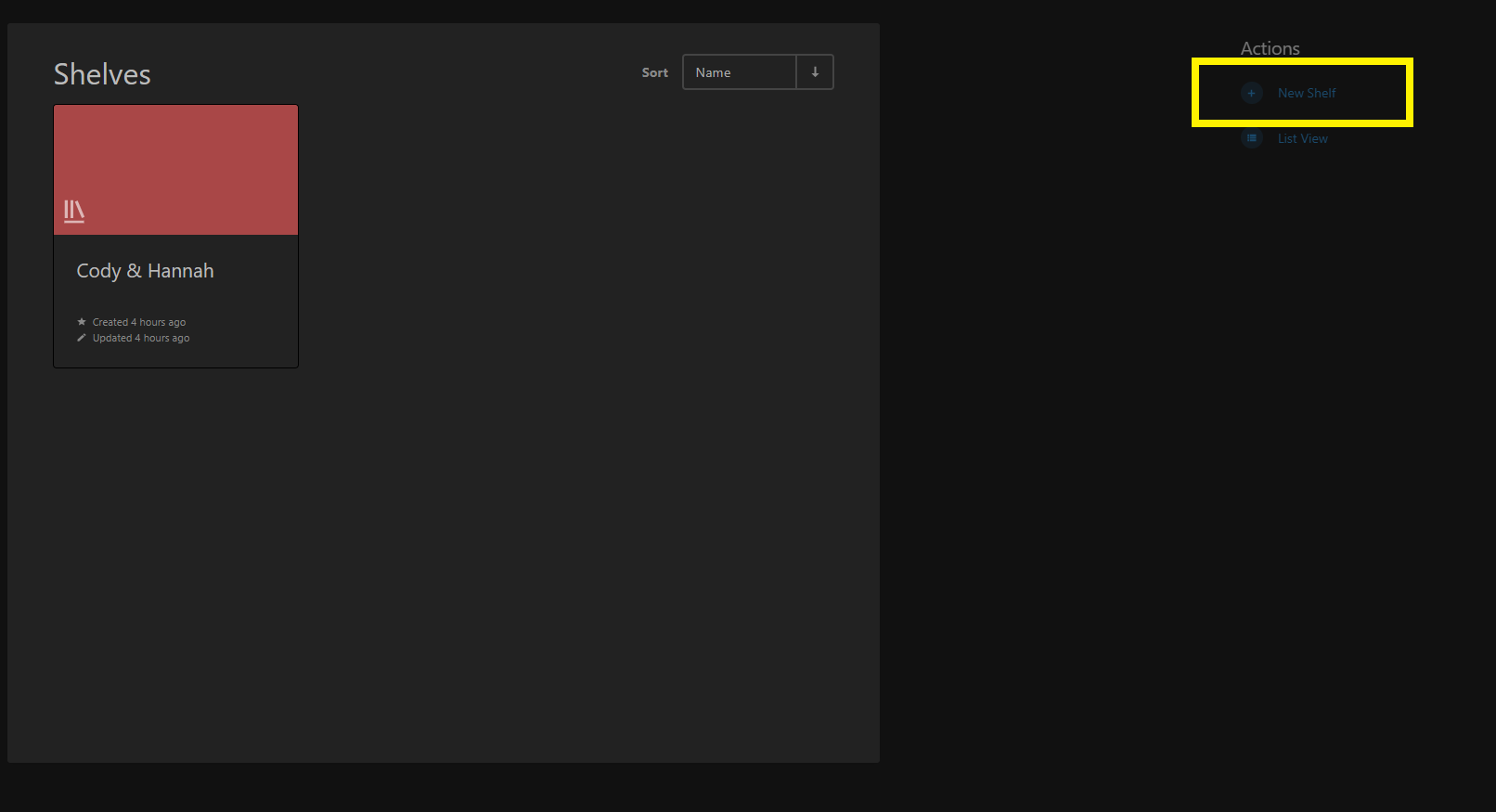
To get started, click "Shelves" in the upper right hand corner. From there you can browse other people's shelves or make your own by clicking "New Shelf" on the right hand side of the page.
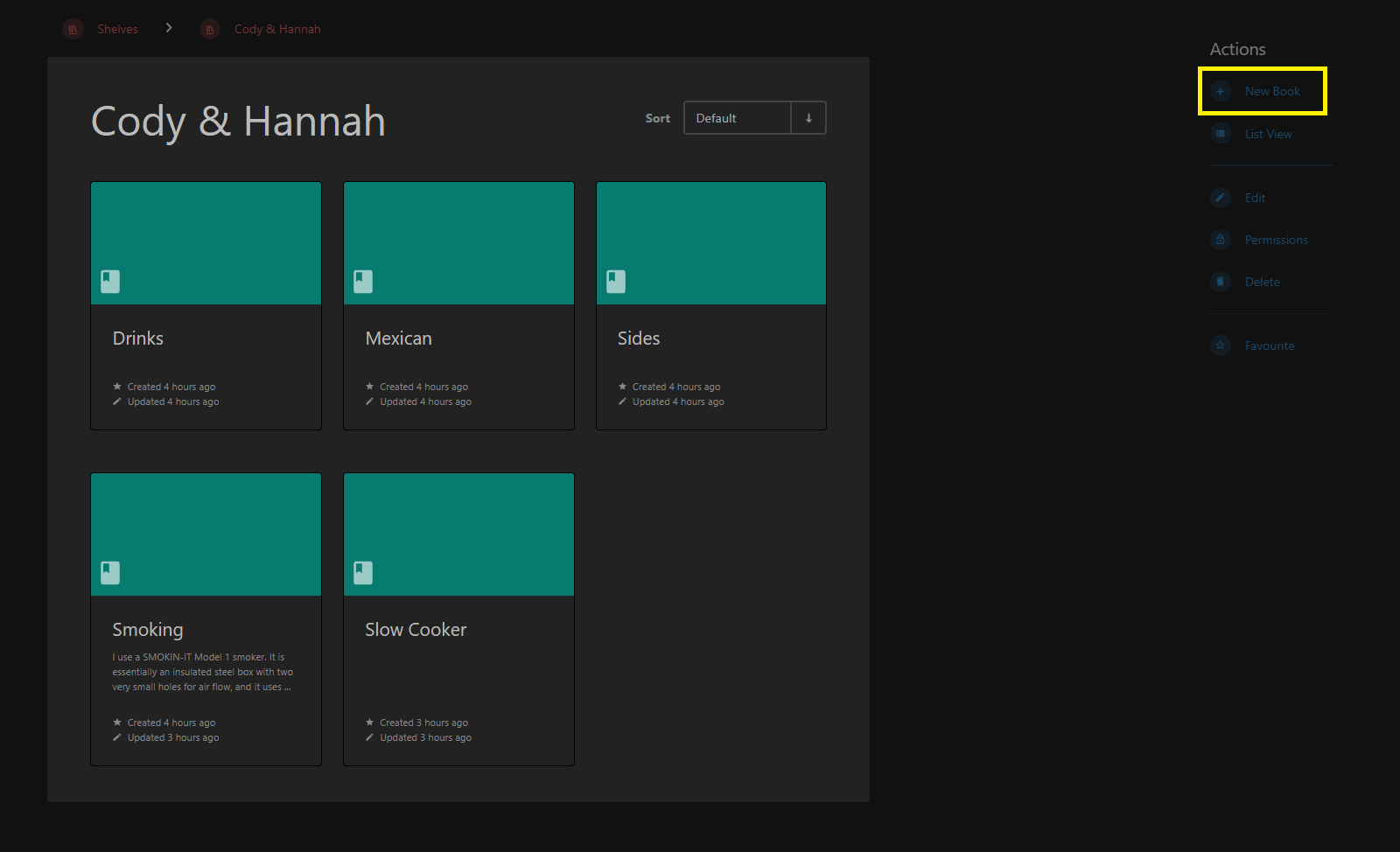
Within your shelf you can organize your recipes however you like, but you must create at least one book to hold them because you cannot hold pages of text directly on a shelf. To create a book, when in your shelf, select "New Book" on the right hand side of the page
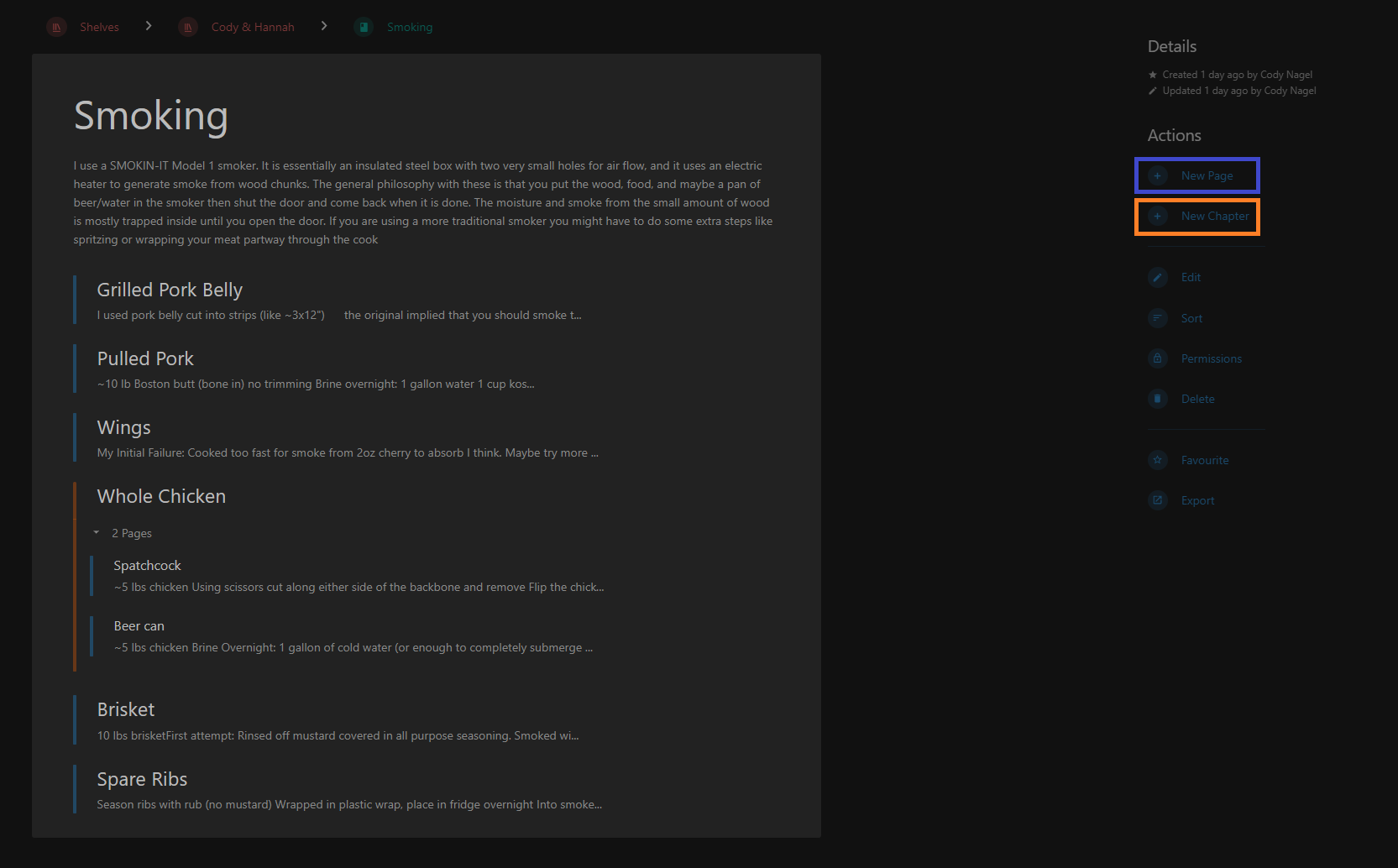
You can put pages directly into a book or you can group one or more related pages into a chapter. Chapters are completely optional and mostly act like a book within a book. In the below example, you can see the items in blue are pages, and the "Whole Chicken" section is a chapter with two pages, Spatcock and Beer Can.
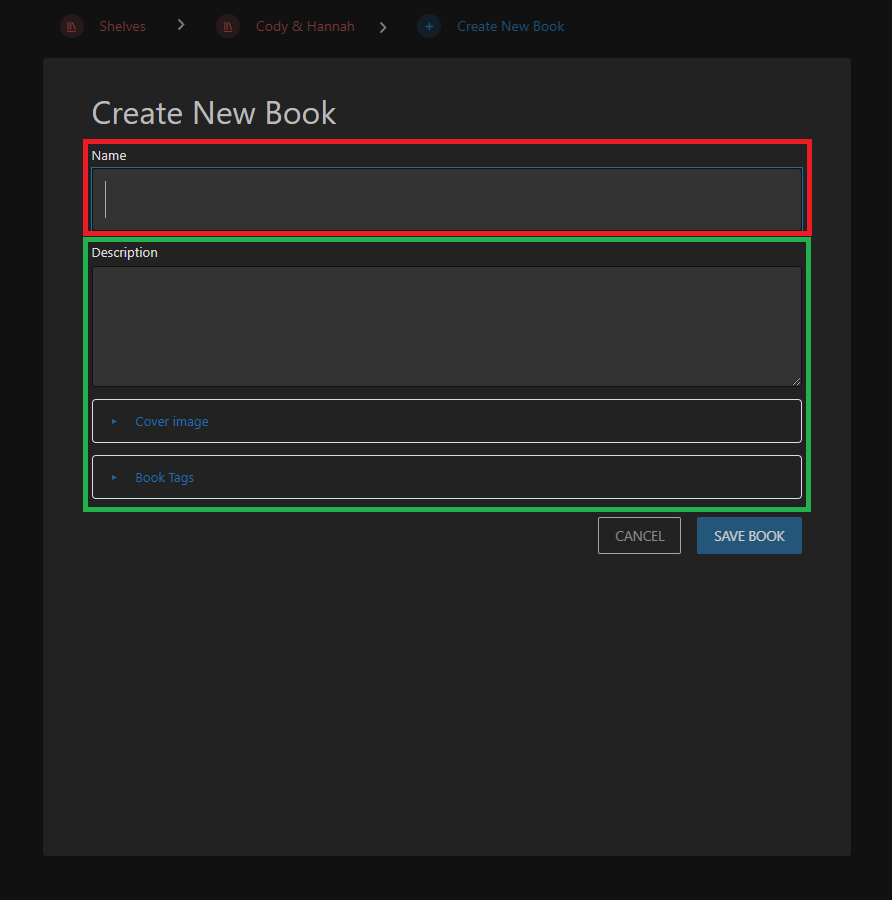
When creating each level of organizational unit, you are able to put descriptions, tags, or images (highlighted in green below) for the item, but the only required data is the title (highlighted in red below).
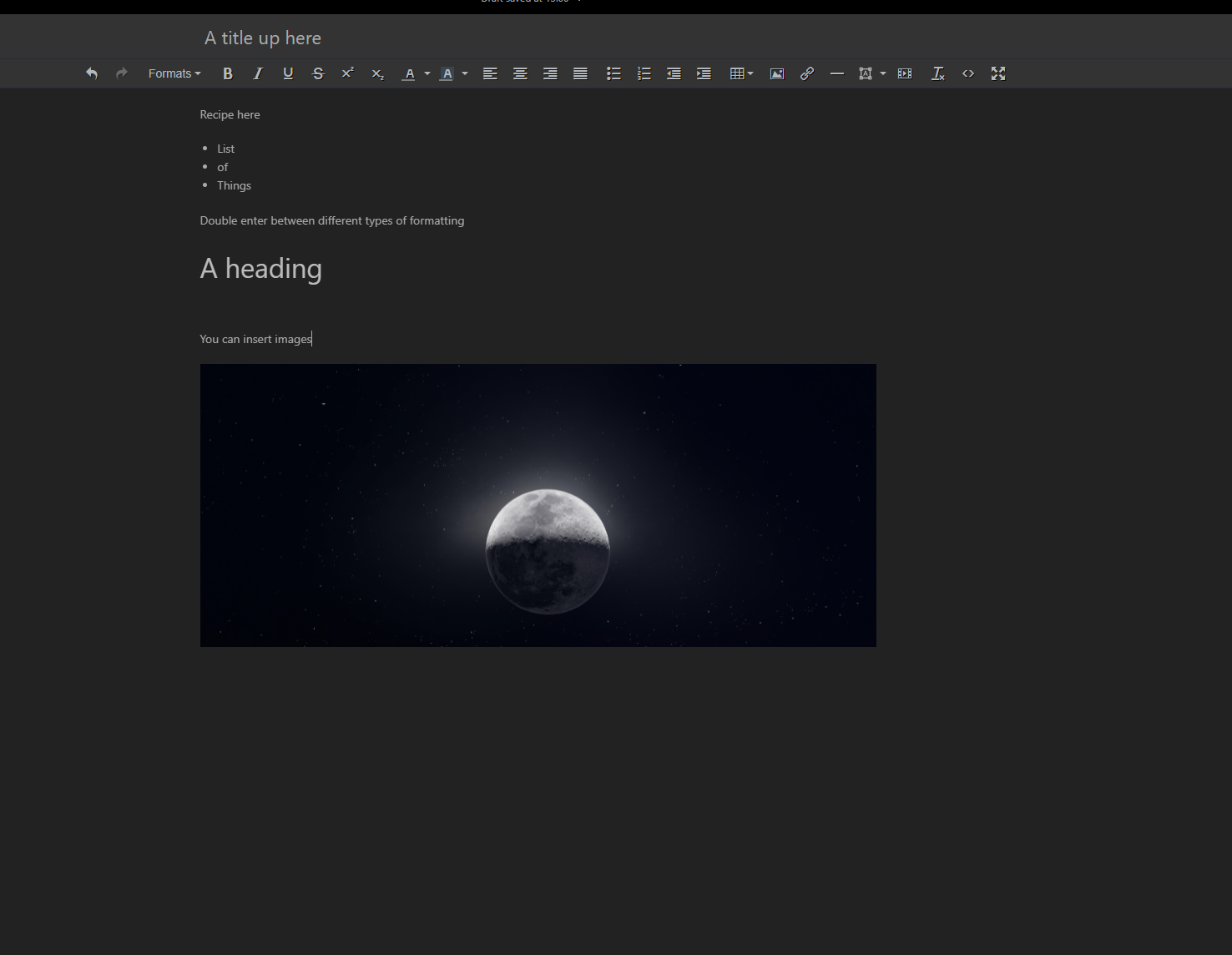
The editor for pages is very similar to Microsoft word or any other text editor. Just make sure to enter a title at the top of the page.
If you ever want to cleanly print a page, you can click export on the right hand side to save the page as a pdf or text file. You can also save an entire book this way.
To delete a shelf, book, chapter, or previously saved page select "delete" in the right hand menu when on the page for that organizational unit. To delete an page/draft, when in the page editor, click the three dots between the title and search bar, and select delete
If you save a page, and later make changes that you want to undo, you can select revisions from the right hand menu to go back to an earlier version of the page.
Logistics:
This page is hosted on a small webserver in our house and therefore is subject to downtime caused by things like power outages, internet outages, or Blue hitting the power button.
For security and ease of setup on my end, it is not possible for users to create their own accounts or to reset their password via email (even though the button exists, it does not work). Therefore if you ever want to add someone to the site or need to rest your password, contact Cody.
If you accidentally delete a whole book/shelf/page we should be able to recover it and if you need help getting started/formatting your stuff, just let Cody know.